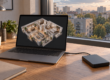
How to place a virtual tour on Google Maps: a step-by-step guide
Integrating a virtual tour into Google Maps is not just a trendy feature, but a powerful tool for business promotion. If you are the owner of a cafe, shop, hotel, or any other establishment that wants to be visible online, this guide is for you. We will tell you how to add your 3D virtual tour to your Google My Business profile step-by-step, based on our experience working with dozens of clients.
Step 1: Prepare a high-quality virtual tour
Before publishing anything, make sure your virtual tour complies with Google's standards. This means high-resolution panoramas (minimum 14 megapixels), no artifacts, and good lighting. Google is very demanding about quality, and understandably so: their goal is to give users the most realistic experience possible. We always recommend using professional equipment and software to avoid problems at this stage.
If the virtual tour was created by us, we have already taken care of all technical details. If you have a virtual tour from a third-party producer, make sure it meets the requirements. Photos must be stitched without visible seams, and color correction should be natural. Remember that Google may reject low-quality images.
Step 2: Create or gain access to a Google My Business profile
Your business must be registered and verified in Google My Business. If you don't have one yet, create it by going through the verification process. This can take from several days to several weeks, depending on the verification method (usually by mail or phone). Without a verified profile, you will not be able to manage your information on Maps, including adding a virtual tour.
For our clients who already have a profile, we often request access to it to upload the virtual tour ourselves. This saves time and avoids errors. If you plan to do it yourself, make sure you have administrator or owner rights for the profile.
Step 3: Upload panoramas via the Street View app
To upload panoramas, Google provides a special Google Street View app (available for iOS and Android). Open it, log in to your Google account, and click the button to add new photos. Select the 'Import 360-degree photos' option and upload all panoramas of your virtual tour.
Important: panoramas must be in JPEG format with metadata indicating their 360-degree format. Many virtual tour creation programs automatically add this metadata. When uploading, the app may ask you to specify the location of each panorama on the map. This is critically important for correctly linking panoramas into a virtual tour.
Step 4: Connect panoramas to each other
After uploading the panoramas, you need to 'stitch' or 'link' them into a single virtual tour. In the Street View app, this is done manually. You select one panorama, then click on it and see arrows that you can move, indicating the direction to the next panorama. This process requires attention and accuracy.
As specialists, we use professional tools that automate this process and ensure smooth transitions. But for independent work, the Street View app is the only official way. Take your time, check every transition so that the user doesn't 'get lost' in your virtual tour. For example, when shooting a 600 m² restaurant with several halls and passages, correctly linking the panoramas took us extra time to make the navigation logic intuitive.
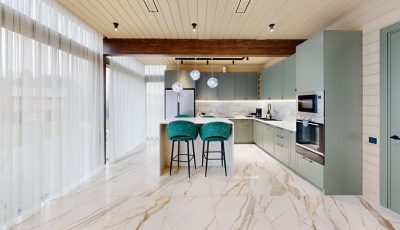
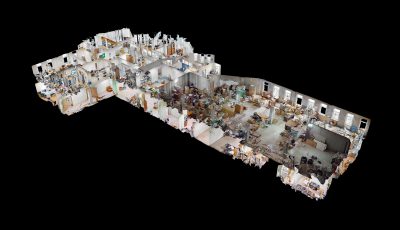
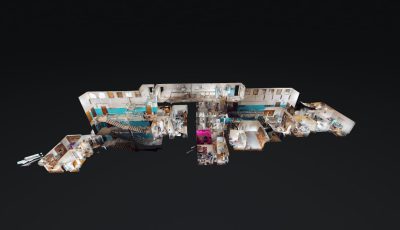



Step 5: Wait for moderation and publication
After you have uploaded and linked all panoramas, Google sends them for moderation. This process can take from several hours to several days. During this time, Google specialists check the quality of the images, their compliance with the rules, and the correctness of the links. If everything is in order, your virtual tour will appear in your Google My Business profile and will be available on Google Maps and Street View.
If the virtual tour did not appear or received a 'Rejected' status, most likely some rules were violated. In this case, you will need to find the reason and repeat the upload. Sometimes this can be due to geographic binding or low-quality images. Once, a client from Kazan faced the problem that Google rejected the virtual tour due to overly dark photos in one of the rooms; reshooting was necessary.
Step 6: Integrate the virtual tour into your website (optional)
Although this step is not directly related to Google Maps, it is very useful. After publishing the virtual tour on Google, you will be able to embed it on your own website. This is done using HTML code, which can be generated directly from Google Maps. Simply find your virtual tour, click 'Share', and select the 'Embed map' option.
This will allow visitors to your website to immediately immerse themselves in the atmosphere of your establishment without leaving your page. In addition, we offer flexible formats for hosting the virtual tours we create: (1) 360° Space cloud – high-speed servers with technical support; (2) customer's server – the virtual tour is deployed on the client's own infrastructure; (3) offline – a standalone version for PC or a separate build for VR headsets, works without internet. So, even if you don't want to depend on Google, you always have alternatives.
Common mistakes when placing a virtual tour on Google Maps
- Low panorama quality: Blurred, dark, or overly bright images will be rejected. Google strives for maximum realism.
- Incorrect location binding: Panoramas must be accurately positioned on the map, otherwise they will not display or link correctly.
- Lack of logical connections: If panoramas are not connected by arrows, the tour will look like a set of separate photos, not a single space.
- Violation of Google rules: Failure to comply with content rules (e.g., presence of personal information or obscene images) will lead to rejection.
- Using outdated content: If your establishment has undergone renovations or global changes, the old tour will mislead users. Regularly update your content.
Frequently asked questions
How long will my virtual tour be visible on Google Maps?
After publication, your tour remains on Google Maps indefinitely, until you or Google remove it. However, we recommend updating the tour with significant changes to your establishment's interior.
Can I host a tour not created by 360° Space?
Yes, you can host any virtual tour if it meets Google's technical requirements (high-quality panoramas in JPEG format with metadata). We can help you with verification and upload if necessary.
What to do if my tour was rejected?
Google usually indicates the reason for rejection. Carefully read the message, correct the identified shortcomings (e.g., replace low-quality panoramas or recheck connections), and repeat the upload procedure. If it doesn't work, contact 360° Space specialists for assistance.
Order a 3D tour for your property
Leave your contact — we'll respond within 30 minutes and calculate the cost